We currently offer the following options to pay you for your orders:
- Stripe
- PayPal
Processing Fees
- Stripe: 2.9% + $0.30 per transaction
- PayPal: 2.9% + $0.55 per transaction
This is a “gateway” fee and comes out of your order total.
Stripe vs. PayPal
Stripe, once set up, is very convenient. Payments we make to your Stripe account will automatically be paid to your business checking account normally a 1-2 days after we make the transfer. Stripe is the preferred method as it is the same processing we use for the site transactions, and typically has little to no delays in payouts.
PayPal might be the easiest for some, as it’s very widely used and many businesses may already have a PayPal account.
If you are unsure which to choose, we highly recommend Stripe, when possible.
Connect a Billing Account
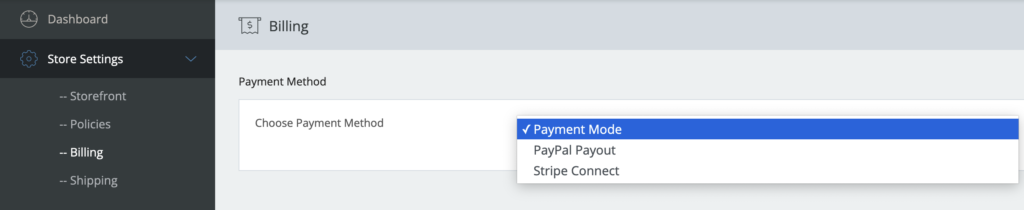
Click the “Payment Mode” drop down menu to open up the options.
PayPal
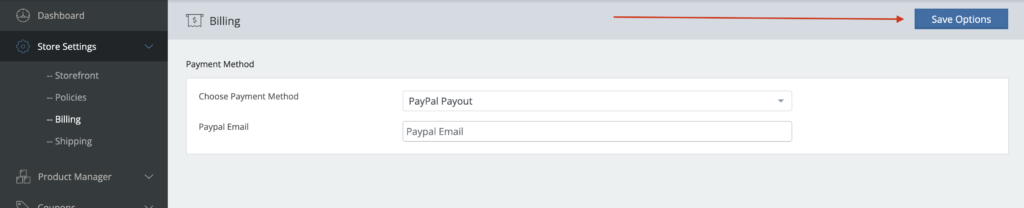
If you’d like to use PayPal, select PayPal Payout and enter the email for your business PayPal account. Click the “Save Options” button as seen below to save your setting.
Stripe
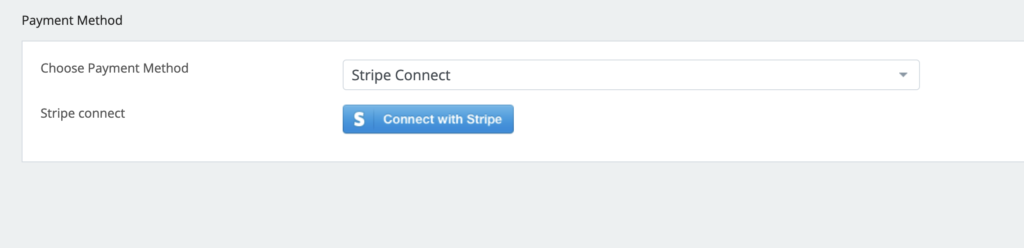
If you’d like to use your existing Stripe account or create one to receive payment, select Stripe Connect option.
A blue “Connect with Stripe” option will appear. Click that and follow the prompts to connect or create your Stripe account. You will want to make sure you have your business information available such as EIN number, business checking account number, routing number, etc. to answer questions needed to set up the account.
You will then be directed to a Stripe page to create your account or login to an existing Stripe account you may have. Follow the step-by-step prompts.
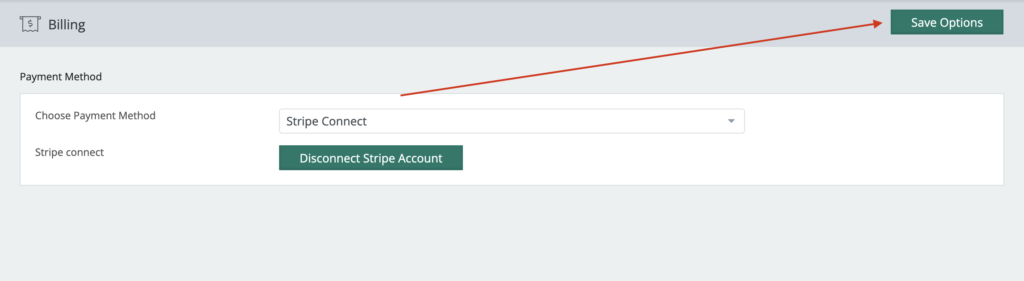
After completion, you should be re-directed back to our site and you’ll see that the button now says “Disconnect from Stripe”, which would allow you to disconnect your Stripe account if needed. That means that your account is connected to Stripe for payments!
Note: Do not click the button to disconnect, unless that’s your intention.