An external product is a product that you do not intend to sell through this marketplace, but instead link to from this site, back to your website for the customer to purchase there or complete some other action (learn more, fill out a form, etc.).
The steps to enter an External Product are very straight forward. From the Product Type section select “External/Affiliate product”.
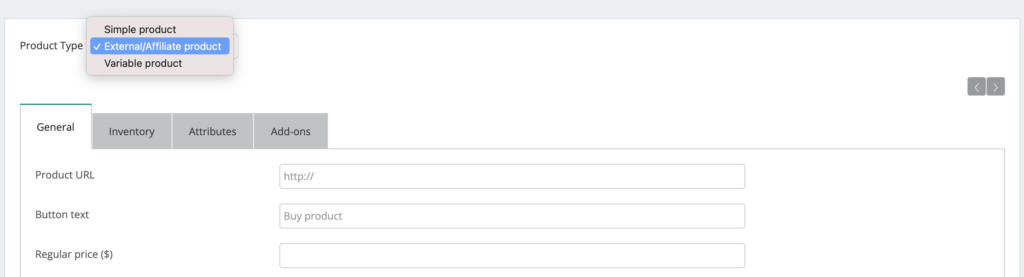
You’ll still need to complete all of the main steps of a Simple Product (Title, Photo, Short Description, Price if needed, and Category), but you won’t need to add other items like inventory, add-ons, or other.
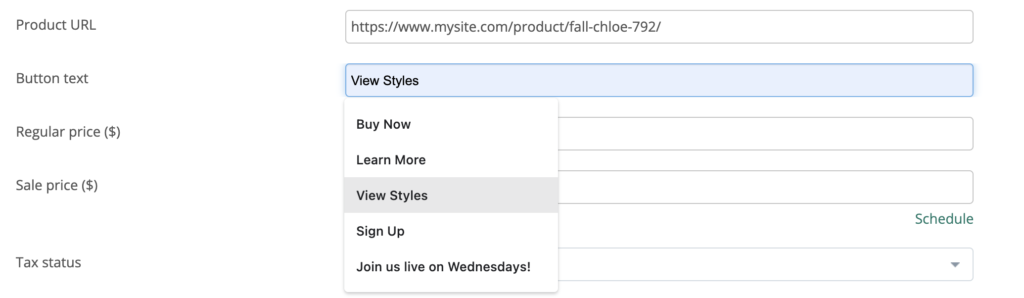
On the General tab, you’ll also now enter the link of where you want the customer to go on your website. This should be the direct link (to the product, sign up, etc.) not to your overall website. You want to make it as easy as possible for the customer to get right where they want to go.
After entering the link, you can also change the Button Text. The text will default to Buy Now, but you can enter whatever text is needed (ideally short text, not long form). Some examples are: Learn more, View styles, Sign up, or some other similar text informing them of the action they’ll take when clicking the button.
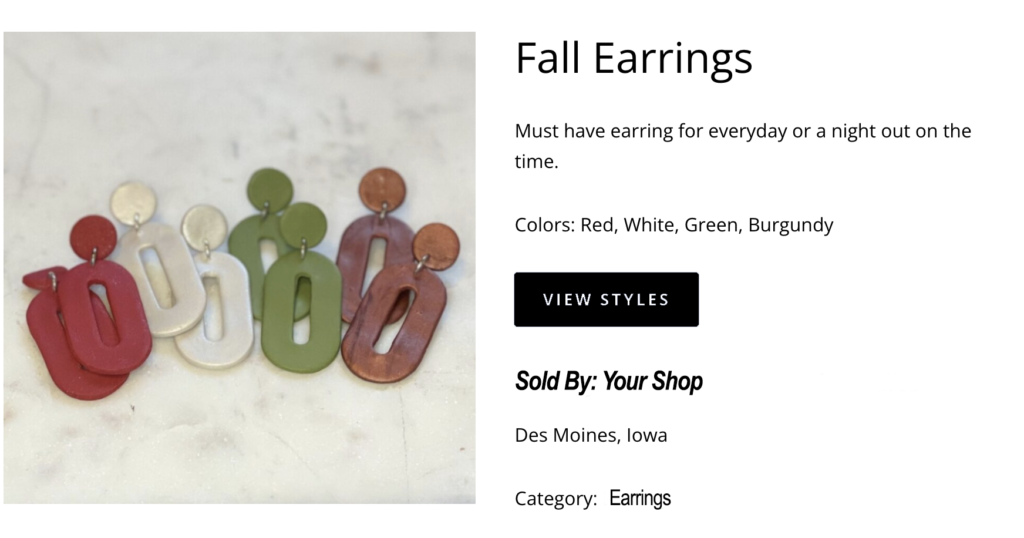
Once you’ve completed all of the necessary fields, save your product as a DRAFT, then review it on the front (click the link generated under the product title), to see what it looks like as a customer. Note the button “view styles” example here now is a clickable link that takes the customer to your website.
If everything looks good, and the button link navigates correctly where you want it to go, click SUBMIT on the product page to send it to our team to review for publishing.