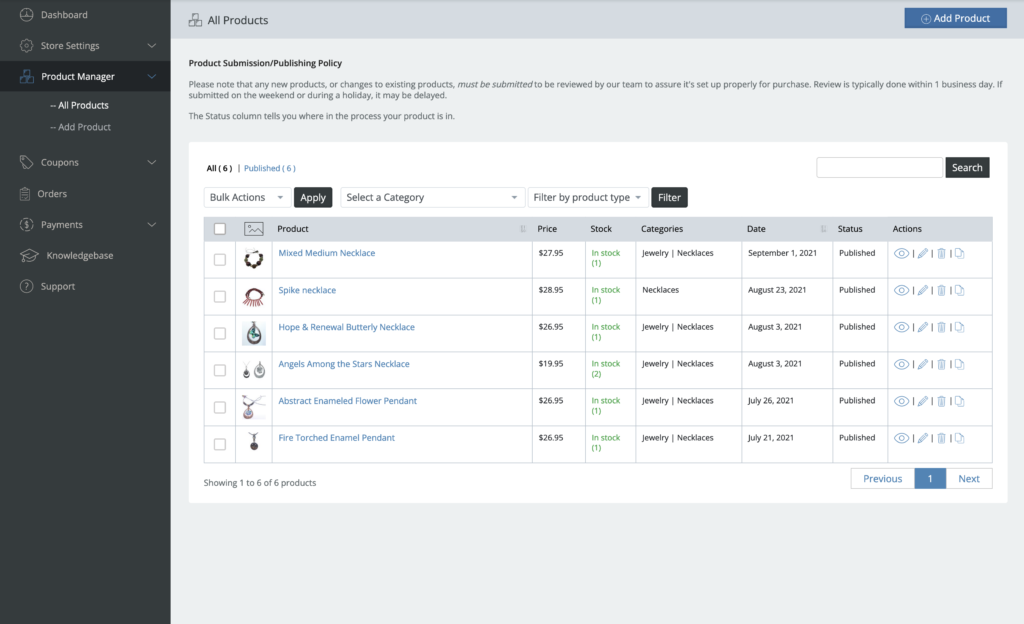
Once you’ve completed all the required Store Settings, you can begin entering Products. Here’s an example of the Product Page interface once you have some products:
The Basics
Bulk Editing
You can make changes to multiple products at once by bulk editing. This is useful if you have multiple products that you’d like to Submit, Draft, Delete or set to a Sale Price.
To do this, select the check boxes for the products you want to edit and click the “Bulk Actions” drop down menu as seen below:
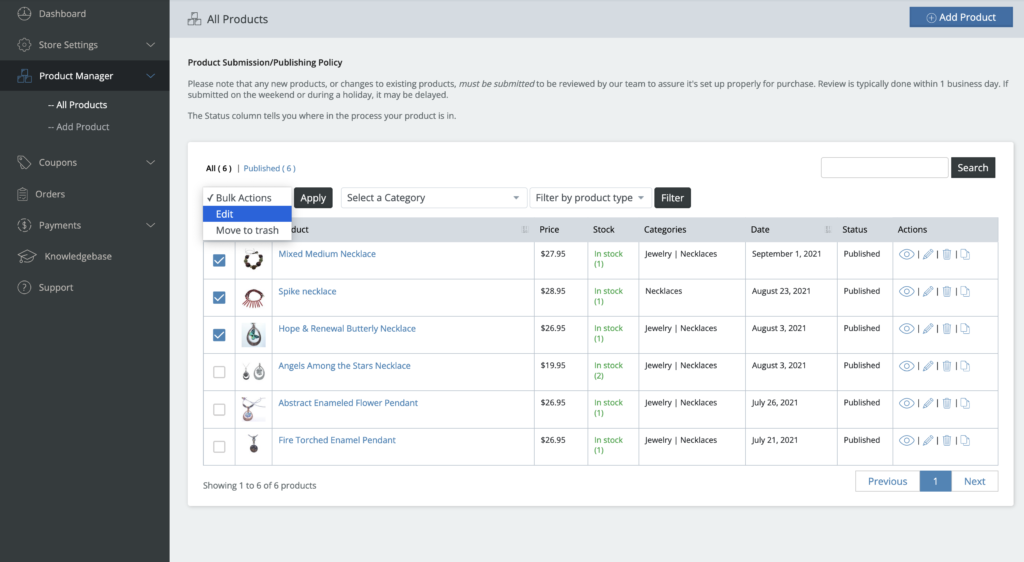
Once you do, select “Edit” and click the “Apply” button. A popup will appear.
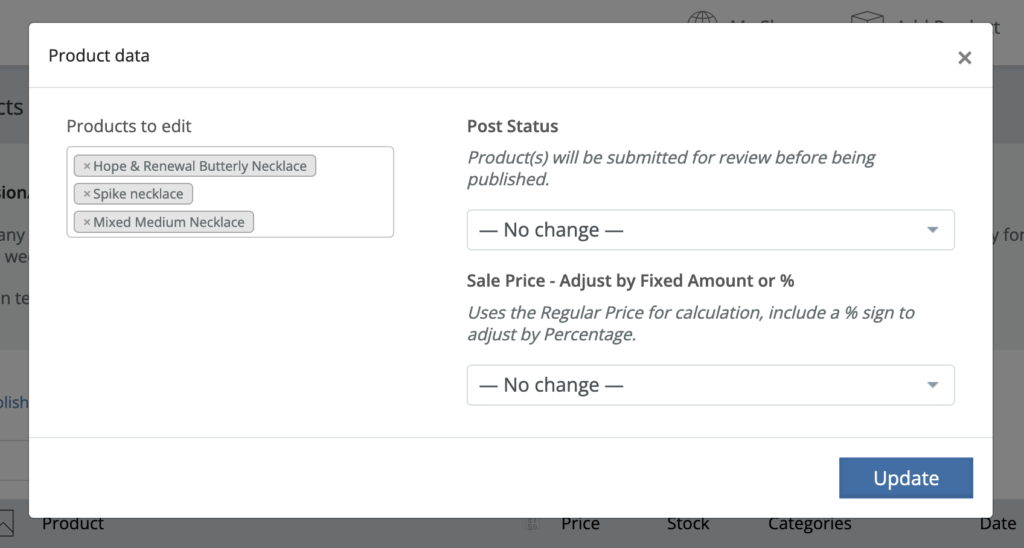
From there, you can change the Post Status or set a Sale Price.
Delete multiple products
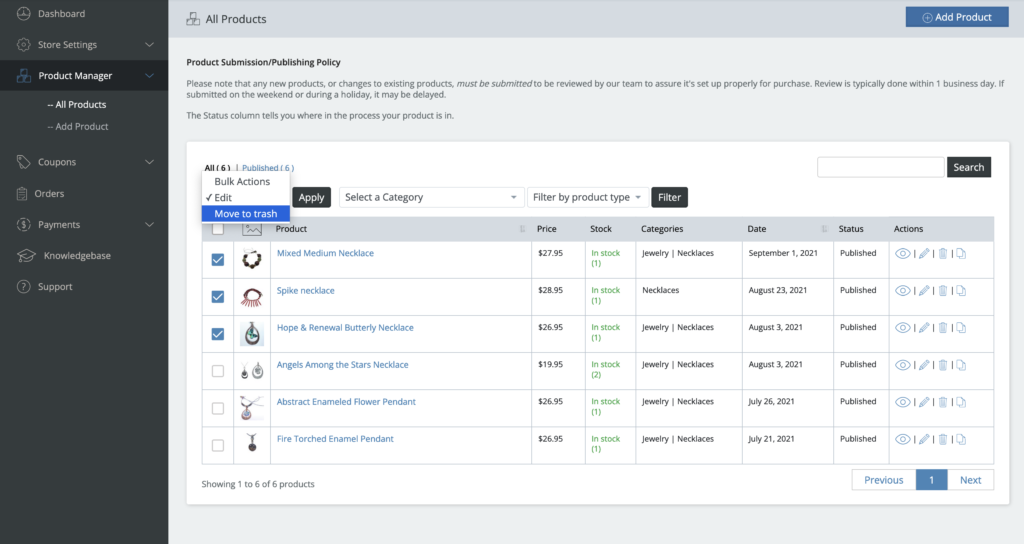
To Delete multiple products at once, you’d select the products and choose “Move to trash” and click the “Apply” button as show below:
Actions
The Actions column allows you to take additional actions on the product(s).
- Eyeball: Lets you view the product as a shopper would see it on the marketplace.
- Pencil: Edit the product.
- Trash: Delete the product.
- Copy: Allows you duplicate an existing product to edit as a new product.